Property inspection - How it works
Property Inspection Solution
ValorEasy's Professional Property Inspection Solution is a useful and easy-to-use tool for real estate professionals — valuers, inspectors, property managers, and real estate agents. It allows visual inspection, quick data collection, storage, and processing of data, photos, and handwritten signatures.
The inspection solution is available for both apartments and villas (individual family homes).
The application operates only if you have a valid account opened, and the inspection has been initiated in the desktop application ValorEasy, following the steps described below.
1. Sign up or Log in
Open a demo or paid account by visiting /abonamente/
If you already have an account, log in to https://evaluare.valoreasy.ro/#/login
2. Initiate Inspection in ValorEasy Desktop Application
Launch the desktop app at https://evaluare.valoreasy.ro/#/
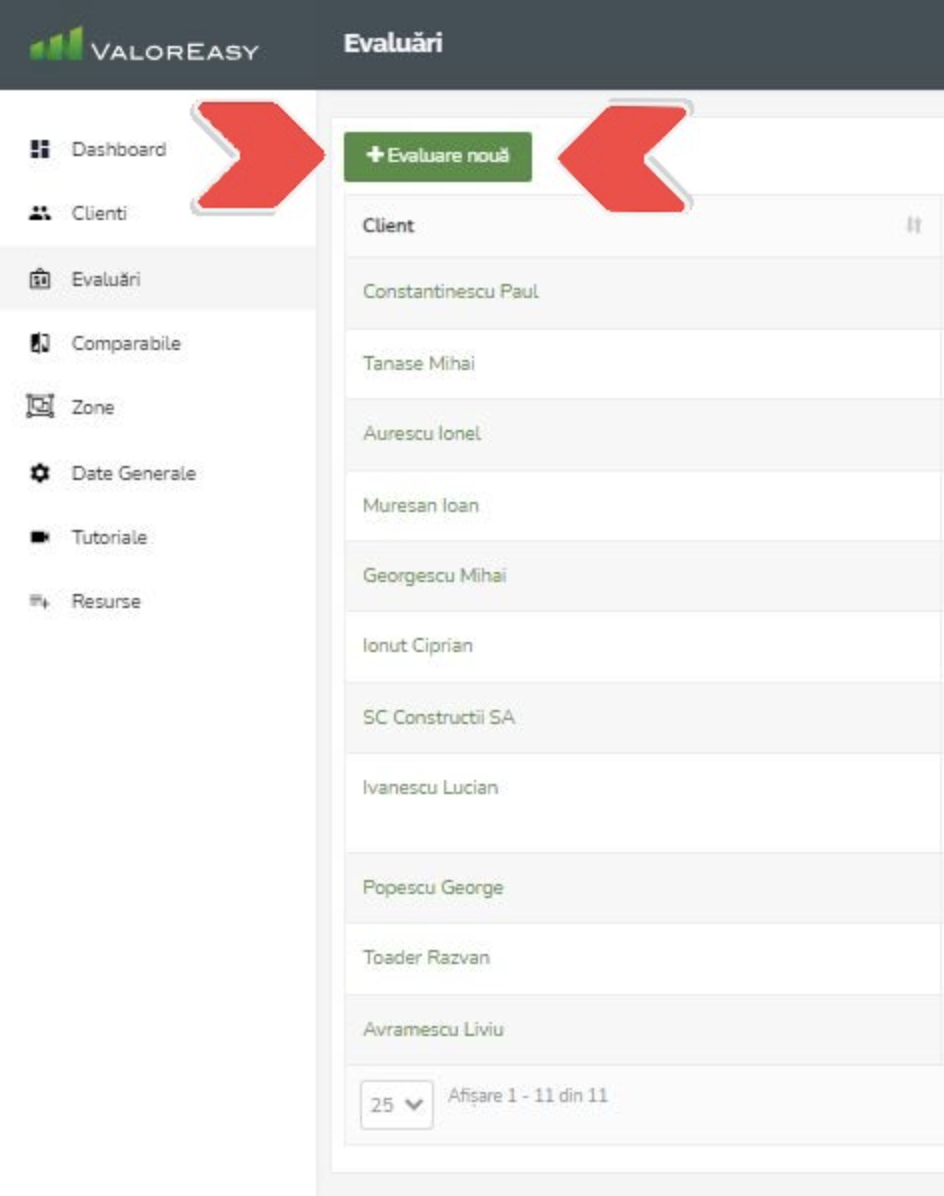
Press the "+ Evaluare noua" button in the "Evaluari" tab
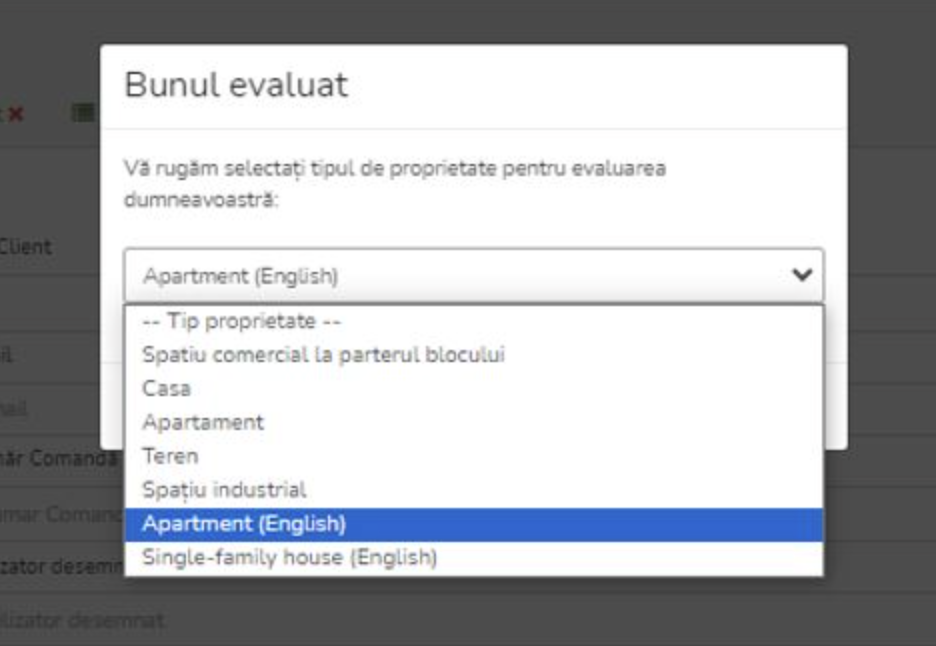
Choose the asset type as "Apartment - English" or "Single family house - English" then press "Salveaza"
In the "Adresa Client" tab, fill in the client name ("Nume") and type ("Tip client" - individual or organization). Select an item from "Judet"(County) and "Localitate"(City) then press "Salveaza."
3. Download ValorEasy Mobile Inspection App (one time)
4. Mobile App Inspection Process
Open the mobile app, fill in your email, press "Conectati-va", then the login pin you received on the entered email address. Press again "Conectati-va"
Choose the designated inspection from the list and start completing the fields. If you want to see evaluations made at other times, select from the top list "Ultimele ... zile"(Last days) or "Toate"(All)
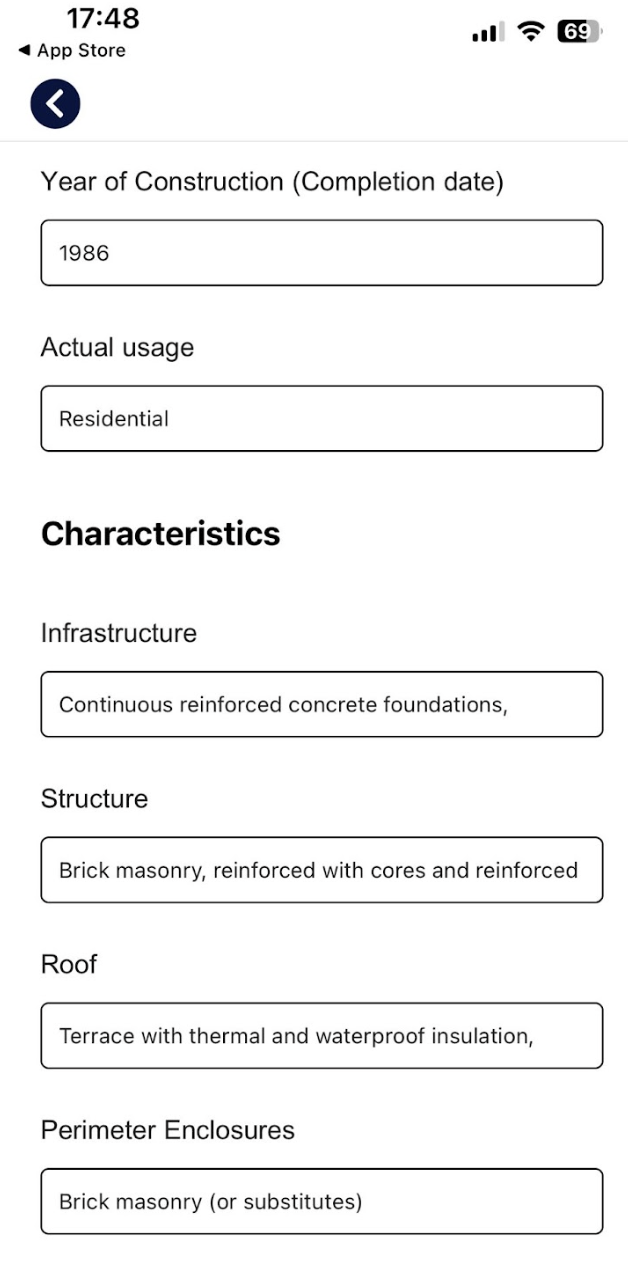
Once you've located your property in the list, choose it and fill out all the fields on the inspection form.
At the end, choose to save the inspection as a draft "Salvare draft" (editable later, including using the mobile app) or finalized "Finalizeaza inspectia" (editable only on desktop app).
5. Upload Inspection Data to Desktop App
Return to the desktop app, select the valuation from the "Evaluari" list
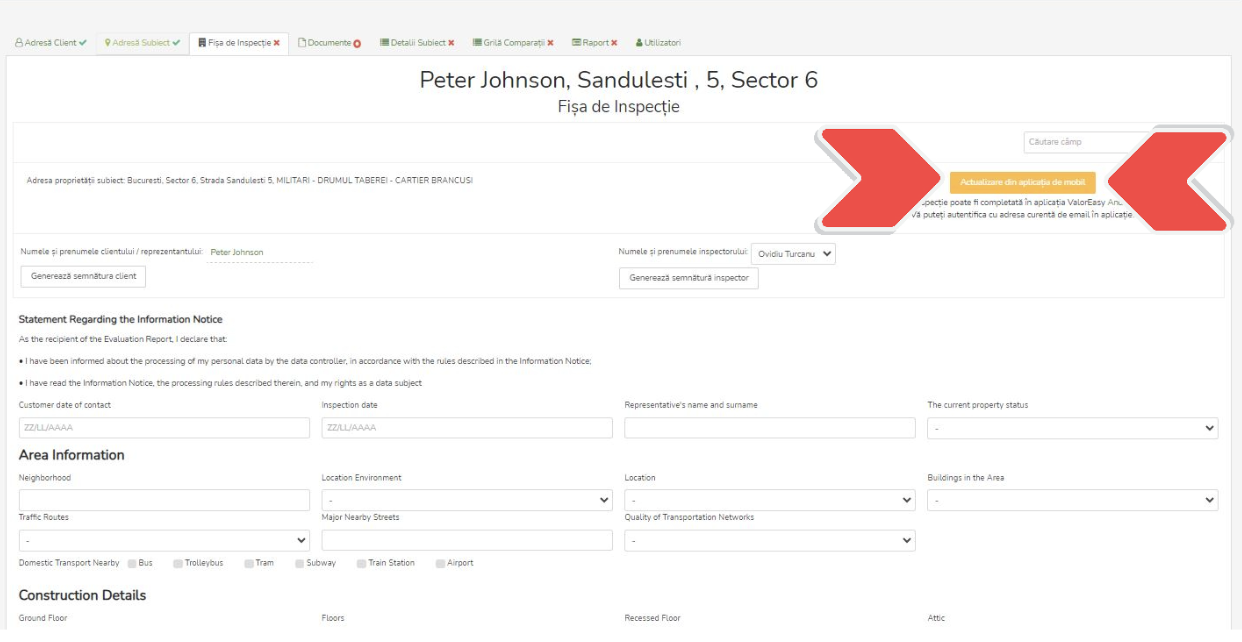
Click first on the "Fisa de inspectie" tab and then on the "Actualizare din aplicatia de mobil" button
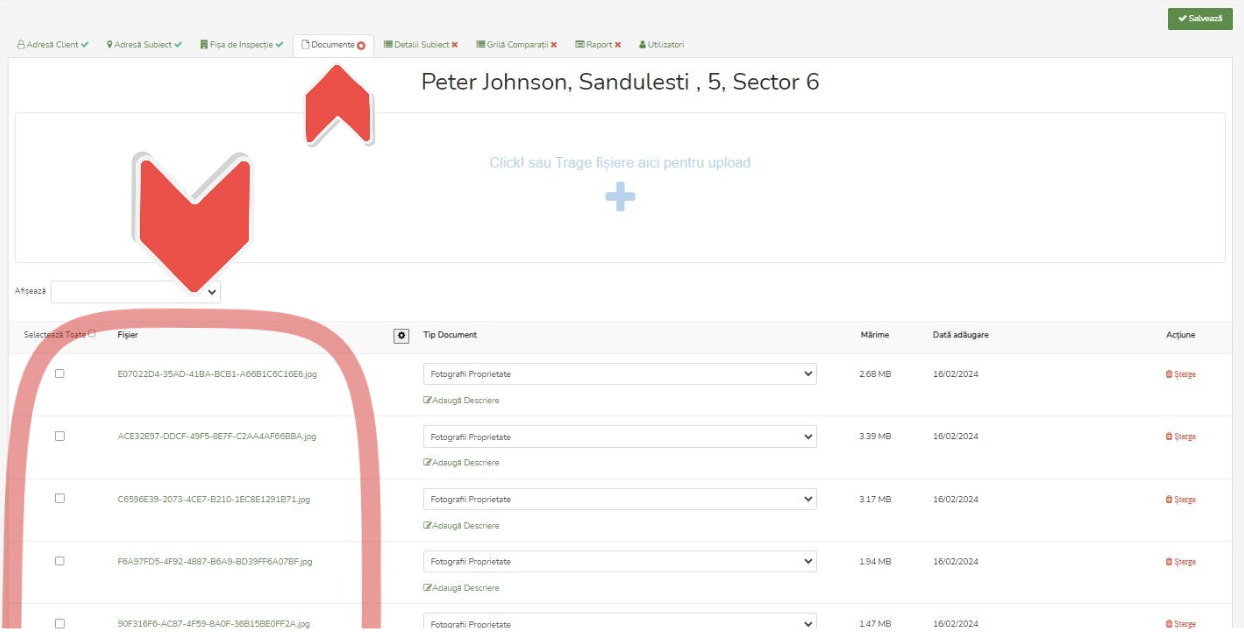
The inspection data will be uploaded into the desktop application, where the inspection report is saved, and you can edit or download it from the "Documente" tab
If you encounter any issues or have questions during the testing process, please do not hesitate to reach out.